Rootwise App  ·  Now in open testing

Record your doctor visit. Get a plain-language summary and to-do list.

Rootwise turns what your doctor said into a summary you can actually read and a task list you can put on your calendar. The recording is deleted as soon as your summary is saved.

Android Available now Free while in testing. Get it on Google Play
iPhone Coming soon Join the list below and we'll email you when it's ready.
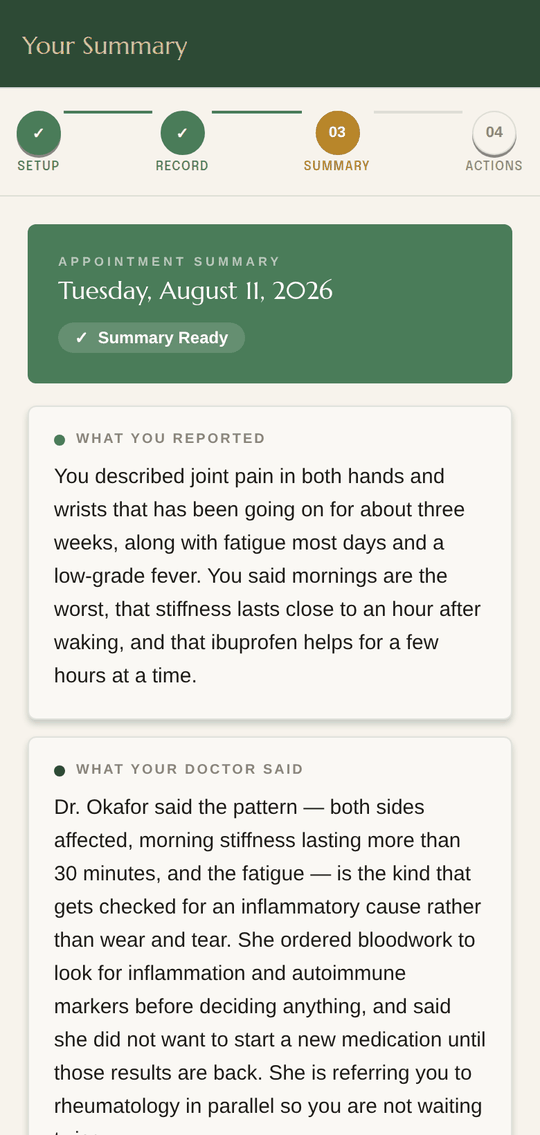
The Rootwise App summary screen: plain-language sections for what you reported, what your doctor said, and diagnoses.
Your visit, in plain language

How It Works

Four steps, from the waiting room to your calendar.

Step 01 / 04

Pre-Appointment Setup

Bring your symptoms; we organize them for a more effective appointment.

Before the Visit
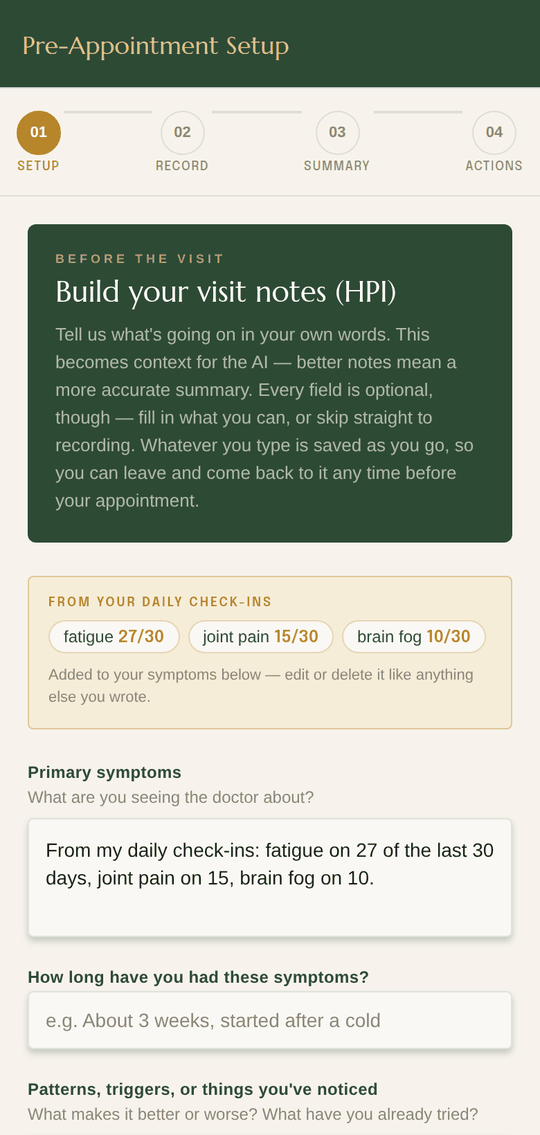
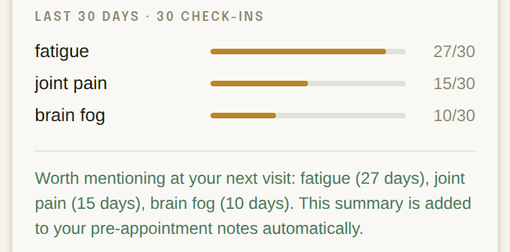
The Rootwise App pre-appointment setup screen: a card showing the three symptoms logged most often in the last 30 days, above a form for primary symptoms, how long you have had them, patterns and triggers, and your goal for the visit.
Your visit notes, in your words

Before your appointment, you build your visit notes in your own words — no jargon required.

  • Your most-logged symptoms are filled in from your daily check-ins before you start
  • Add how long it's been going on, and any patterns or triggers
  • Set your main goal for the visit — what you need to leave with
  • Every field is optional; skip the lot and go straight to recording if you're already in the waiting room
  • Already had the visit? Go straight to typing it up instead
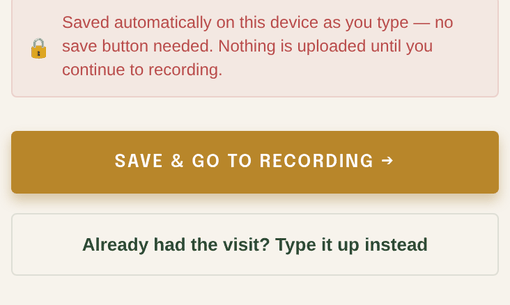
Close-up of the bottom of the setup screen: a notice that notes save automatically with no save button needed, above a Save and Go to Recording button and a link reading Already had the visit? Type it up instead.
Notes autosave on your device as you type — there's no save button to remember. Keep editing right up to the appointment, and nothing is uploaded until you continue.
Step 02 / 04

Appointment Recording

One tap, with consent. You focus on the conversation.

During the Visit
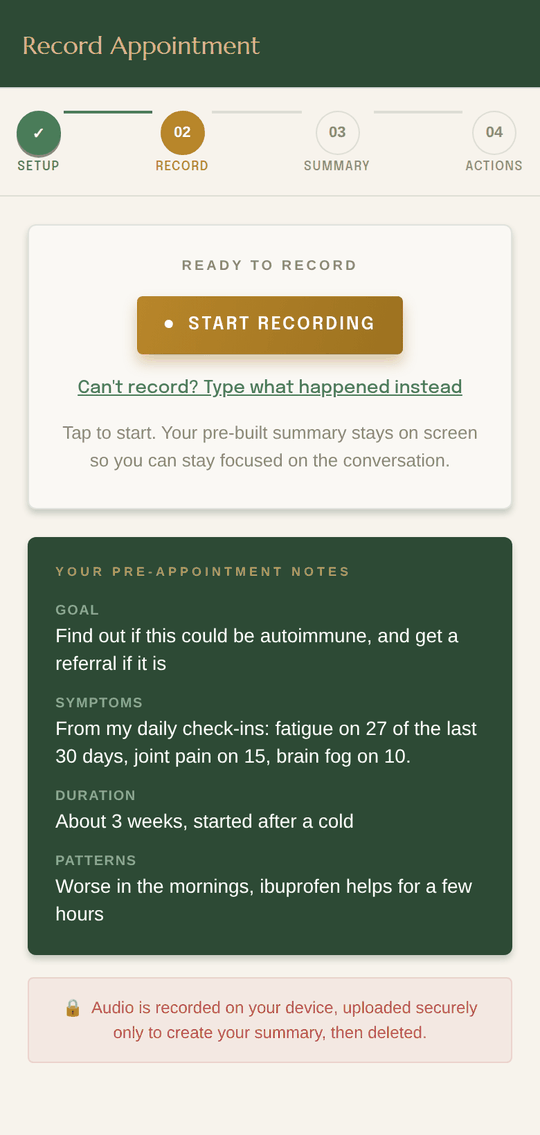
The Rootwise App recording screen: a Start Recording button, a link reading Can't record? Type what happened instead, the pre-appointment notes below, and a note that audio is deleted once the summary is created.
One tap to start
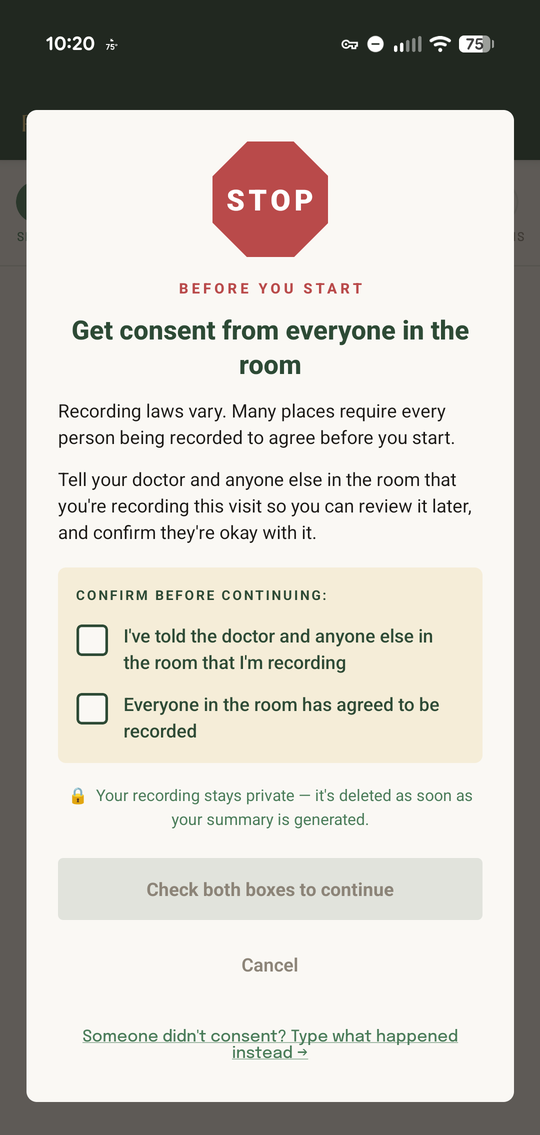
The Rootwise App consent gate: a stop sign above the heading Get consent from everyone in the room, with two checkboxes that must both be ticked before recording can start.
Consent gate, before anything records

One tap starts the recording. You focus on your doctor. The app handles the rest — you don't have to take notes or try to remember everything that was said.

  • Recording can't start until you tick both boxes: you told the room, and everyone agreed
  • Your pre-appointment notes stay on screen to help you stay on track
  • Audio captured locally while you have the conversation
  • Pause and resume freely — the easy way to capture only the instructions at the end
  • One tap to stop and trigger processing
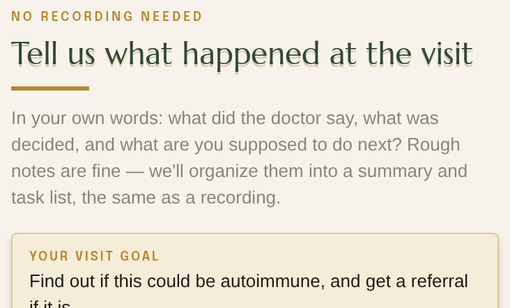
Close-up of the Write Your Recap screen: the label No Recording Needed above the heading Tell us what happened at the visit, and a note that rough notes are fine.
Someone didn't consent, or recording just isn't an option? Type what happened instead. Rough notes are fine — they become the same summary and the same task list.
Step 03 / 04

AI-Generated Summary

Without the medical jargon.

Right After the Visit
The Rootwise App summary screen: plain-language sections for what you reported, what your doctor said, and diagnoses.
Plain language, section by section

Within minutes of leaving, you have a clean, readable summary of your appointment — what was said, what was decided, and what comes next.

  • What you reported to your doctor, drawn from your notes and your daily check-ins
  • What your doctor said and decided
  • Any diagnoses, referrals, or explanations given
  • Medications, tests, or follow-ups ordered
  • Something off? Fix it yourself — the summary is yours to edit
  • Text too small to read comfortably? One setting resizes every screen in the app
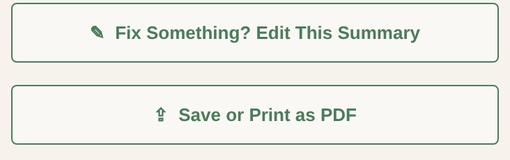
Close-up of two summary buttons: Fix Something? Edit This Summary, and Save or Print as PDF.
Edit anything the AI got wrong, then save or print the whole thing as a PDF to hand to another provider, a caregiver, or your own files.
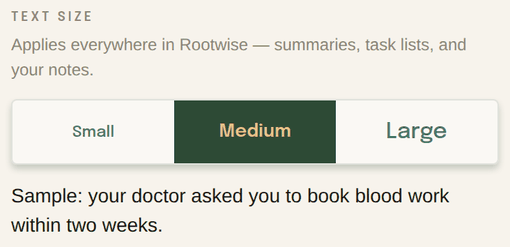
Close-up of the account screen's text size control: small, medium, and large options, with a sample sentence underneath that resizes with the choice.
Set the text size once in Account and every screen follows — summaries, task lists, and your own notes. It sits on top of whatever your phone is already doing, for the people who never found that setting.

Rootwise doesn’t diagnose or treat. Summaries are AI-generated and can be incomplete, so confirm anything important with your care team.

Step 04 / 04

Color-Coded Action List

Every next step, dated and on your calendar.

Follow-Through
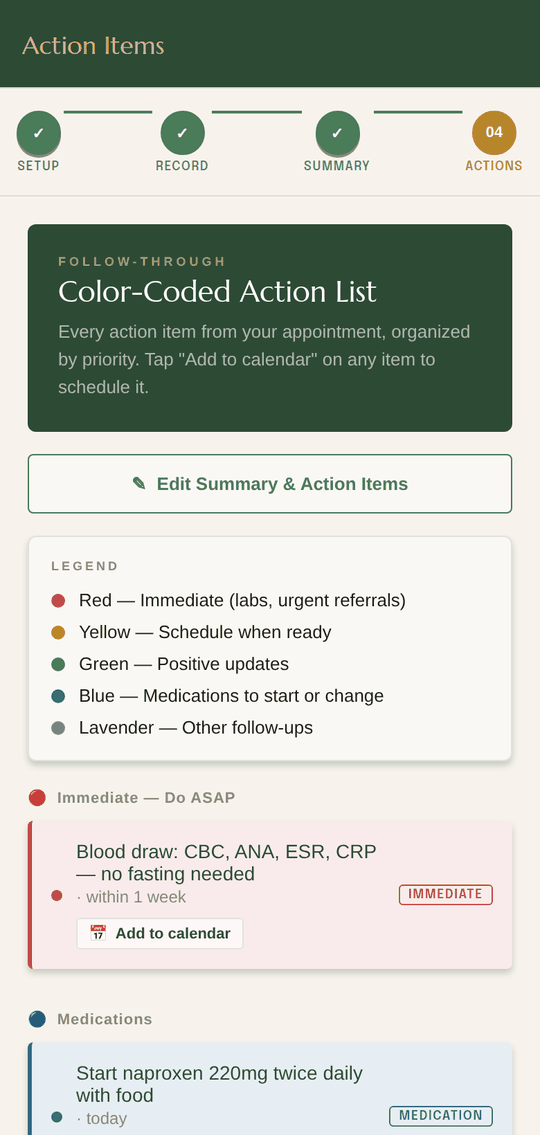
The Rootwise App action list: a five-colour legend and grouped task cards, each with an add-to-calendar button.
Sorted by urgency, not by order mentioned

Every action item from your appointment is extracted and color-coded by priority. Tap “Add to calendar” on any item to put it on the calendar you already use.

  • Red — immediate (labs, urgent referrals)
  • Yellow — schedule when ready
  • Green — positive updates
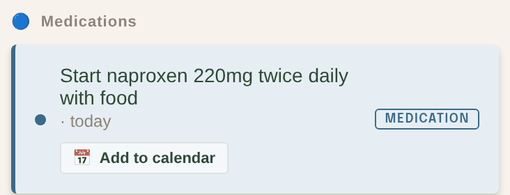
  • Blue — medications to start or change
  • Lavender — other follow-ups
Close-up of an action item: schedule or attend follow-up appointment, due in 3 months, with a Schedule tag and an Add to calendar button.
Each item carries its own timing — “within 4 hours,” “in 3 months” — and one tap opens your calendar with the event already filled in, ready for you to save. The whole list stays editable too.
01 / 04

Between Appointments

Twenty seconds a day beats trying to remember six weeks.

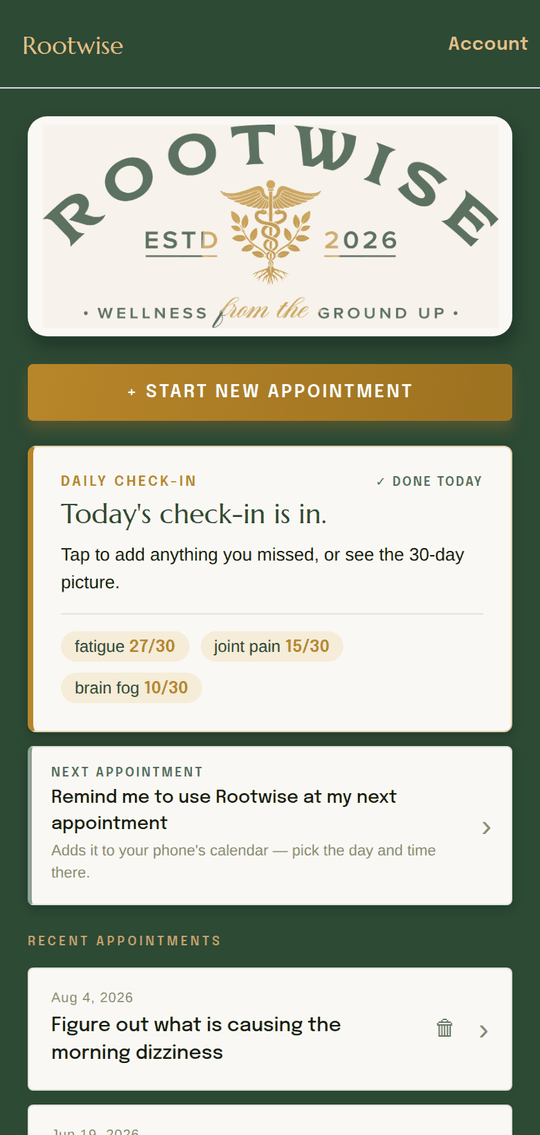
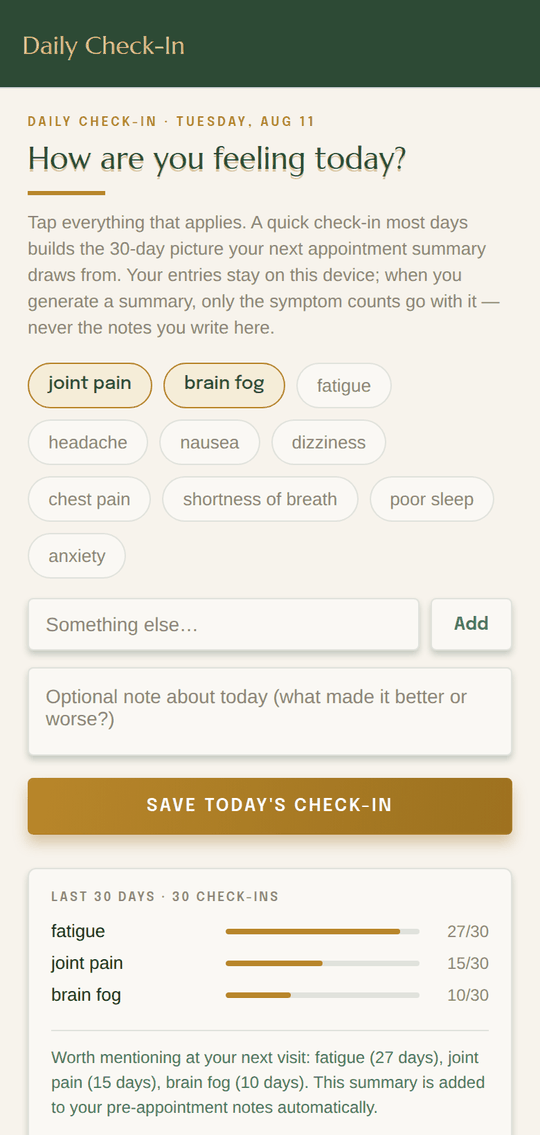
“How have you been since I saw you last?” is the hardest question in the room. The daily check-in answers it for you — tap the symptoms you had, add a note if you want, and the app keeps a running 30-day picture that your next appointment summary draws from.

The Rootwise App home screen: the Rootwise banner, a Start New Appointment button, a daily check-in card showing the three most-logged symptoms, a row for setting a next-appointment reminder, and a list of past appointments.
Home — the check-in leads, every visit kept
The Rootwise App daily check-in screen: tappable symptom chips, a field for something else, an optional note, and a 30-day frequency chart underneath.
Daily check-in — tap what applies
  • Tap the symptoms you had today — or add your own if it isn't on the list
  • Leave an optional note about what made the day better or worse
  • Your entries stay on your device; when you generate a summary, the 30-day picture goes with it as context
  • The top three carry straight into your next visit notes, so you don't have to remember them
  • Past appointments stay in your account until you delete them — summary, task list, and all
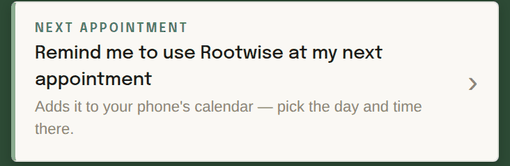
Close-up of the home screen's next appointment row: Remind me to use Rootwise at my next appointment, with a note that it adds the reminder to your phone's calendar.
Know when you're next seen? Set the reminder from home and it lands in the calendar you already use, so the app is open before you walk in rather than after.
Close-up of the 30-day check-in chart: dizziness 5 of 30 days, headache 4, poor sleep 4, shortness of breath 4, blurred vision 3, brain fog 2.
Walk in with “dizziness 5 days out of 30” instead of “a few times, I think.”

Good to Know

Before you sign up

Which phones

Android phones today, through Google Play's open testing. The iPhone version is in development, and the list below is how we'll tell you it's ready.

What it costs

Free while the app is in testing.

Your recording

Deleted as soon as your summary is saved, and the transcript is never kept. Your summaries stay private to your account until you delete them.

Recording consent

The app won't record until you confirm everyone in the room agreed. Not sure of the rules? Check your state, or type up the visit instead.

Early Access

Get early access.

Android users can install it from Google Play today. Everyone else, join the list and we'll email you when it's on your phone.